DrawingFox

Chrome extension · vector PDF → DXF

Convert PDF to DXF and keep the layer names, the scale and the curves

The conversion runs inside your browser tab: the drawing is read, the geometry is fitted and the DXF is written on your own machine. Nothing is uploaded, and what comes out is CAD geometry you can snap to — not a picture and not a chain of short straight lines.

Coming to the Chrome Web Store Compare free and paid

A free account, three full conversions a day. One payment removes the daily limit — see the pricing below.

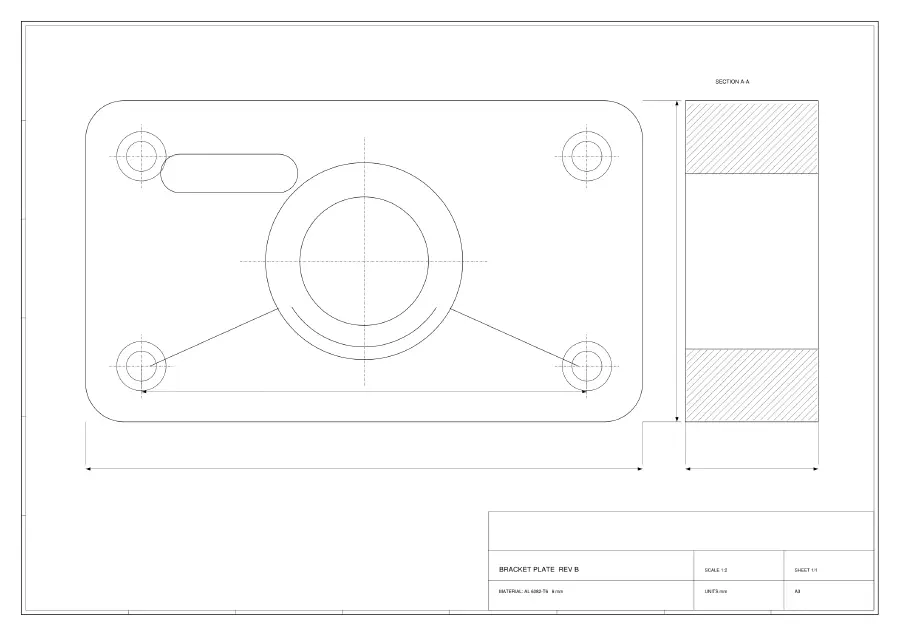
The source file: an A3 bracket-plate drawing as it appears in a PDF viewer — border, title block, section view and dimension lines, all in one colour.
Before bracket-plate-rev-b.pdf — A3, vector, four CAD layers
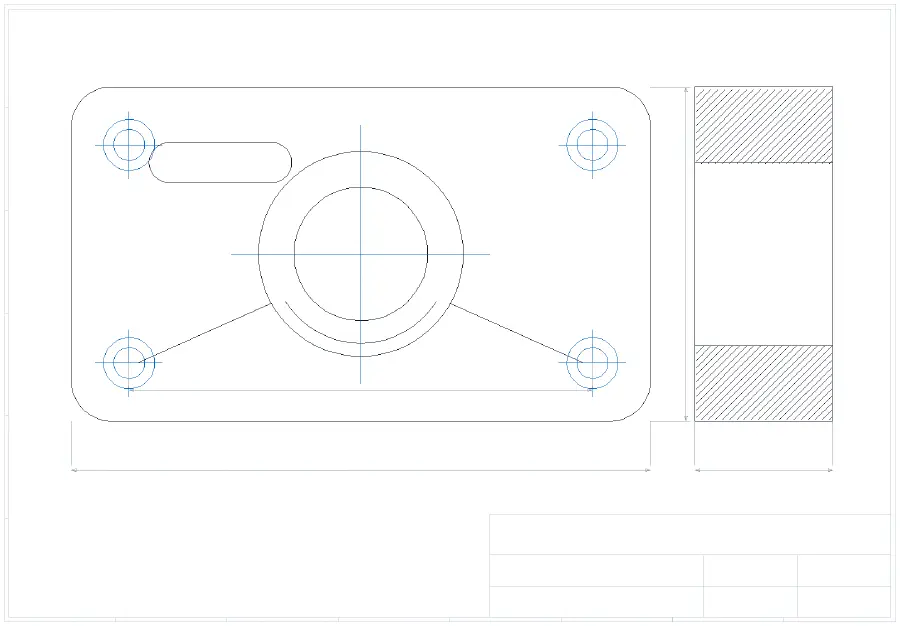
The same drawing after conversion to DXF, redrawn from the file and coloured by layer name: outline black, holes and centre marks blue, dimensions and border grey.
After bracket-plate-rev-b.dxf — 138 entities on the same four layers

Our own A3 demo drawing, converted by the shipped extension, then redrawn entity by entity from the resulting DXF by ezdxf — an independent Python library — and coloured by layer. Colour = the layer name that survived the conversion.

4 / 4layer names in the demo PDF that came out on the DXF
1:1paper-size output, in millimetres or inches — your choice, recorded in the file
R2007DXF version written (AC1021) — the one most CAD programs read without a converter
11 / 11converted files QCAD, a real CAD application, opened without an error

What survives

Proof: the layer names on the DXF came out of the PDF

A PDF drawing can carry the layer structure it was exported from. When it does, this converter writes each entity onto the layer it started on, with the original name — not Layer1, the actual name your client's CAD file used.

In the drawing above

Four layers, four original names

The demo sheet was drawn with four CAD layers and exported to PDF with the layer information left in. After conversion every entity is still on the layer it started on: RAHMEN, KONTUR, BOHRUNGEN, BEMASSUNG. The colours in the picture above are those four names, nothing else.

On a real A0 sheet

Twenty original layer names, read straight out of the file

The largest sheet we have taken apart is a real A0 construction drawing, 1159.9 × 594.1 mm. It carries twenty layer groups, and their names are the original CAD layer names — Bemaßung, Stahlprofil, Fundament, Wandaufbau among them. That information is in the PDF; the job of the converter is to not throw it away.

When it does not happen

Many CAD exports leave the layers out

AutoCAD and MicroStation do not tick “Include layer information” by default, and of five real drawings we fetched to test with, not one carried layers. When the information is not in the file, no tool can invent it: everything lands on layer 0, and the result screen says so before you save.

What to ask for

It is one tick box at the other end

If you can reach whoever produced the drawing, ask for it to be re-exported with “Include layer information” ticked, or for the original CAD file. That single box is the difference between twenty named layers and one.

Demo drawing: 4 of 4 layer names kept — RAHMEN · KONTUR · BOHRUNGEN · BEMASSUNG

What the result screen says when the PDF carries no layers — word for word:

Layers: None

None — this PDF carries no layer information, so everything is on layer 0. That is a limit of the source file: whoever exported it can tick “Include layer information” in their CAD PDF export to keep the layer names.

It reports that before you save the file, not after you have opened it in CAD and wondered.

Scale and geometry

The scale, the units and the curves come across with it

The DXF is written at paper size, 1:1 — an A3 sheet arrives as an A3 sheet — in millimetres or inches, whichever you pick before converting. The choice is recorded in the file header, so your CAD program does not have to guess at the units and you do not have to rescale anything by hand.

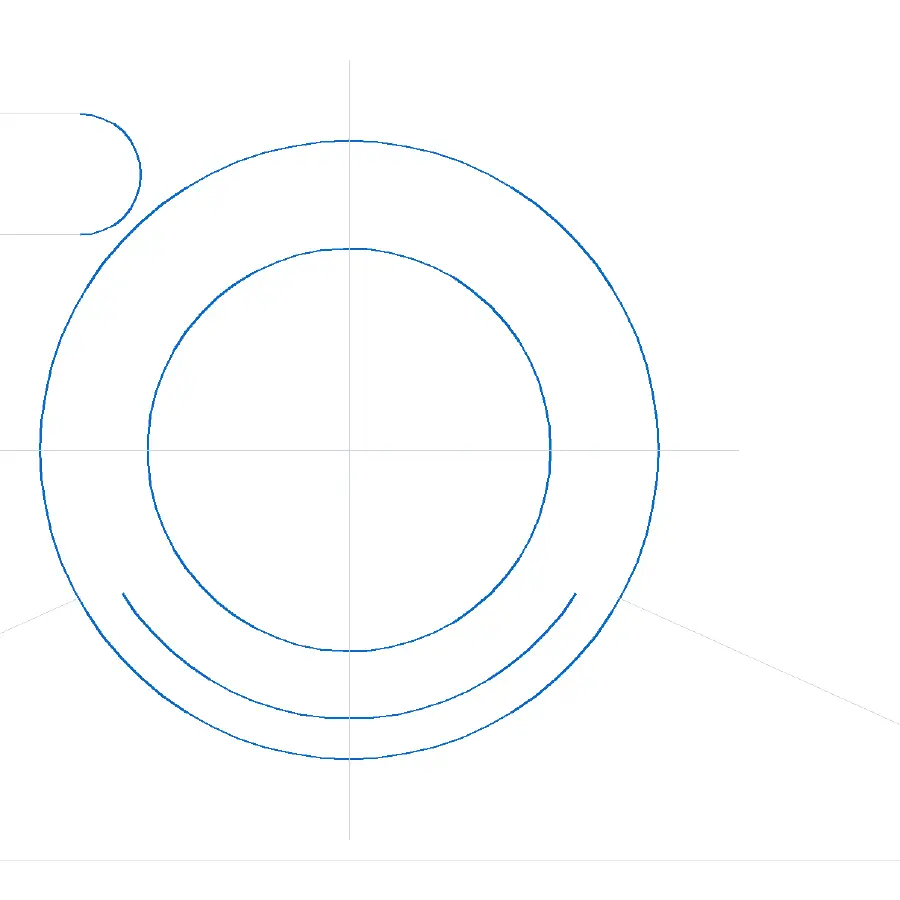
Most line work in a PDF is Bézier curves. The cheap conversion chops each one into short straight segments: the drawing still looks right, and then you cannot snap to a centre, change a radius or offset an edge. This converter fits real curves instead — a full circle comes out as CIRCLE, an arc as ARC, anything genuinely not circular as a SPLINE.

In the drawing above: ARC 10 · CIRCLE 10 · 0 curves flattened into segments · ink-length ratio 1.0000

The file is DXF R2007 (AC1021), ASCII — the version most CAD programs accept without a converter.
Close-up of the converted DXF around the central boss: the circles and arcs are highlighted in blue, showing they are single curved entities rather than chains of short straight segments.
Detail of the converted DXF. Blue = entities that are curves in the file itself, not chains of segments.

Instead of

Compared with an online converter, a tracing tool, or redrawing it by hand

Three other ways people get a DXF out of a PDF drawing, and what each one actually costs.

Online converters

The drawing has to reach their server first

A web converter cannot convert what it has not received — one of the biggest free ones documents it plainly: “All uploaded PDF files are immediately sent to servers for conversion.” The same service warns that “if you happen to close the browser tab during that session, you will not be able to download the converted DWG file.” For a client drawing under NDA, the first sentence usually ends the conversation. Here the PDF is read and the DXF is written in the tab: open the network panel during a conversion and nothing leaves.

Tracing tools

Tracing gives you outlines, not lines

Raster-to-vector tools trace the ink in a picture. What comes back is a closed outline around every stroke — no snappable endpoints, no arcs, no layers. That is the right tool for a logo and the wrong one for a drawing, which is why a scanned PDF is refused here rather than traced badly.

Redrawing by hand

An hour of tracing, and again at the next revision

Drawing on top of the PDF is the usual fallback, and it works until the revised sheet arrives. A conversion takes a few seconds and keeps the geometry exact rather than eyeballed — and it costs the same few seconds at revision C.

Three steps

How to convert PDF to DXF in three steps

No project setup, no upload queue, no conversion settings to learn.

1

Pick the PDF

Click the toolbar icon and drop the file in. Multi-page sets are fine: it opens on the page with the most drawing on it, and you can change the page.

2

Choose the page and the units

Millimetres or inches. A scanned page is refused at this point — before you wait for anything — with what it measured and what to ask for instead.

3

Convert and save the DXF

A few seconds later the result screen reports what came across: the entity counts, the layers kept, the paper size. Then you save the file.

Before the first conversion there is a one-time free Google sign-in. That is how your daily allowance and, later, your purchase are recognised — your drawing still never leaves your computer, only your account and a count of conversions do.

When it will not

When it refuses, it says why — and what to do instead

A converter that fails silently costs you an afternoon. These are the four things that stop a conversion here, in the words the extension actually uses.

Scanned or image-based PDF

“This is a scanned or image-based PDF”

“The page contains a picture of a drawing, not vector line work, so there is nothing to convert into CAD geometry.” The check runs the moment you pick the file, and the grey line underneath reports what it measured — “no vector path operators, 1 embedded image(s)” — so you can tell a scan from a bad export.

Password-protected

“This PDF is password-protected”

“Remove the password and try again.” The extension does not attempt to break protection on a file, and there is nothing useful it can read until the password is off.

Not a PDF, or damaged

“This PDF could not be read”

“It may be damaged or use a format this extension does not support.” A file that is not a PDF at all gets the shorter version: “That file is not a PDF.” Either way you find out immediately, not after a progress bar.

Empty page

“This page has no drawing content”

Cover sheets and notes pages have nothing to convert. Change the page rather than the file — in a plan set the drawing is usually a few pages further in.

None of these costs you a conversion. The daily counter only goes down once the DXF exists and is on your screen.

Free and paid

What it costs

Free

Free every day

3 DXF conversions per day

  • Full drawing every time (no cropping, no watermark)
  • Original CAD layer names kept
  • Curves stay as arcs and splines, not broken into segments

No feature is locked behind the payment: both tiers run the same conversion path and produce the same file. Paying removes the daily limit.

Before you install

Questions about converting PDF to DXF

Which DXF version does it write?

DXF R2007 (AC1021), ASCII — the version most programs accept without a converter. We open every converted file in QCAD, a real CAD application (11 files, no failures), and read it back with ezdxf, an independent Python library.
Will the file open in LibreCAD, QCAD, AutoCAD or Fusion?

DXF of this vintage is read by all of them. What we have personally verified is QCAD and ezdxf, so that is what we claim — if yours refuses the file, that is a bug worth reporting and we will want the file and the program version.

I need DWG, not DXF.

Open the DXF in your CAD program and save as DWG — one step, and lossless in practice. This extension writes DXF and says so, rather than promising a DWG it does not produce. There is more on that choice on the PDF to CAD page.

Does a refused conversion use up one of my free three?

No. The counter goes down only once the DXF exists and is on your screen. A refused scan, a file that is not a PDF, or a conversion that errors out costs you nothing.

The converter is finished. The store review is not.

The drawing at the top of this page was converted by the build you would be installing. It is not on the Chrome Web Store yet — the day it is, this becomes an install button.

Coming to the Chrome Web StoreSee the pricing

Questions before then: [email protected]